

Creating a zone report
Generate a printable report of the zone’s coordination — a styled default report, or a Pro custom report rendered from a template as PDF, ODT, or DOCX.
Open the report dialog
Section titled “Open the report dialog”- In the zone toolbar, click Share Zone → Document Zone Report.
The Create Report dialog opens for the current zone, with Default and Custom (Pro) tabs.
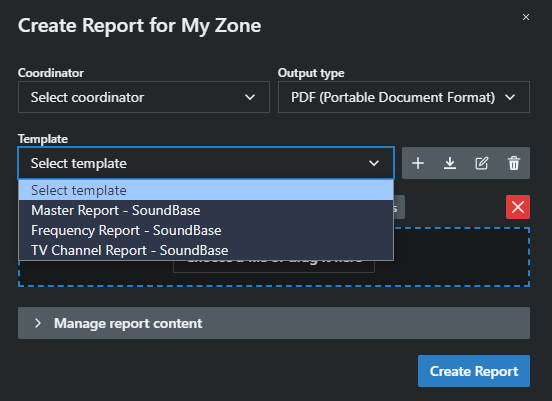
Default report
Section titled “Default report”Renders a styled report in a new browser tab, ready to print or save as PDF (SoundBase Desktop saves it directly). Choose your content options and click Generate Report.
Custom report (Pro)
Section titled “Custom report (Pro)”- Coordinator — whose name appears on the report.
- Output type — PDF (Portable Document Format), ODT (OpenDocument Text File), or DOCX (Microsoft Word Document).
- Template — one of the built-in templates — Main Report, Frequency Report, Main Report (Page Break) (the default), TV Channel Report — or your own uploads. See Importing a zone report template.
- Click Create Report.
Content options
Section titled “Content options”- Project details, Client information, TV channels — include those sections.
- Hide frequency color statuses (incompatible, manually accepted, etc.)
- Groups to include — tick which groups appear. Group order follows the frequency coordination list.
- View PDF before saving — opens the PDF in a browser tab instead of downloading (allow pop-ups).