

Creating band plans
Build and edit band plans — by start/stop, by TV channel with edge buffers, or as multi-range plans — and protect ranges from other calculations.
A band plan is a named slice of spectrum that constrains where calculations may place frequencies. What band plans do in calculations is covered in Band plans; this page is the manager itself.
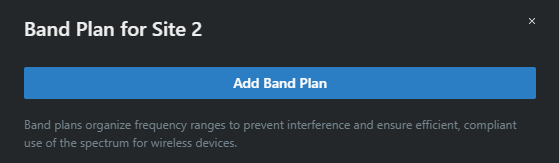
Open the band plan manager
Section titled “Open the band plan manager”Two ways in:
- In the Calculation area, next to the Band plan selector, click the pencil button (Edit Band Plans).
- Or click any band plan segment in the purple strip on the plot.
The Band Plan modal opens for the site (this locks the site for collaborators while it’s open, and clears the current candidate list).
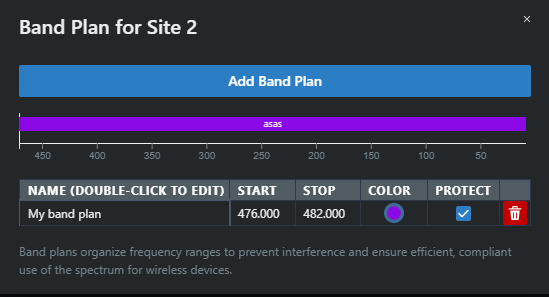
The modal has three parts: the chart across the top (every plan as a bar on a frequency axis), the plan list on the left, and the editor on the right for whichever plan is selected.
Add a band plan
Section titled “Add a band plan”- Click Add band plan at the top of the list. The editor opens on a new, empty plan.
- Name it and set its range. Each range row has a MHz | TV ch switch:
- MHz — enter the start and stop in MHz.
- TV ch — pick the start and stop channels; the row shows the MHz span they resolve to. Optionally tick Apply channel buffer and set the start and stop buffers in kHz (default 100 kHz each) — the buffer pulls the plan’s edges inward from the channel boundaries, keeping calculated frequencies off the channel edges.
- Optionally pick a Color (the plan’s color in the plot strip, purple by default) and tick Protect.
- Click Add. While you type, the plan’s ranges preview as a dashed bar in the chart; the new plan is selected automatically in the calculation area’s Band plan dropdown.
Multi-range band plans
Section titled “Multi-range band plans”Where multi-range plans are enabled, Add range adds further rows to the plan. Each row has its own MHz | TV ch switch (with per-row buffers) and an on/off switch, and can be removed with its ×. Ranges within a plan must not overlap. A frequency assigned to a multi-range plan may land in any of its enabled ranges.
Edit and manage plans
Section titled “Edit and manage plans”Select a plan by clicking it in the list or on its bar in the chart. The editor shows its name, colour, Protect flag and ranges; change what you need and click Save (or Discard to go back to what is stored). Switching plans or closing the modal with unsaved changes asks first.
- Protect — protected plans act as exclusions for every calculation that doesn’t use them: nothing else gets placed inside the plan’s ranges. Frequencies violating someone else’s protected plan show as
IsolatedBandPlanissues in the Health Check. - The trash button deletes the selected plan (confirmed with Delete Band Plan?).
- A plan created from licensed spectrum shows a lock in the list: its ranges are set in Site Settings, and only its name, colour and Protect flag can change here.
You can also drag a plan’s edges directly in the chart — hover a bar to get resize handles; values snap to whole MHz. Drags save immediately and re-run the analysis, and the editor’s range row follows.
Assigning plans
Section titled “Assigning plans”- Per calculation — the Band plan selector in the calculation area.
- Per frequency — the Band Plan field in a frequency’s details.
- In bulk — the band plan option in group and zone recalculation dialogs (keep, apply, or clear).
Groups themselves don’t hold a band plan — assignment is per calculation and per frequency.