

Exporting/importing a project
You can export and import your SoundBase project anywhere, anytime.
To export your project:
- Navigate to yourproject name > Project Menu > Export project.
- Enter a name for the export file and click Save.
To import your project:
- In your project click on the button Close Project. Your current project has been closed and the Project page appears.
- Click Import in the top navigation bar.
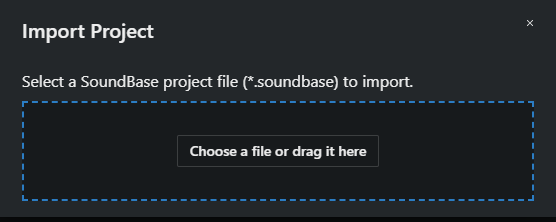
- Choose a file with the extension .soundbase and click Load.
You can also drag and drop the file directly into the Import window.
The project is now imported and is visible on the project page.
What an export doesn’t include
Section titled “What an export doesn’t include”An export carries the project’s Coord, Nexus and Dashboard work. It doesn’t include:
- Harmony data. None of it travels in a
.soundbasefile: not shows or performances, stage plots, inputs and patching, label templates, RTA sessions and traces, Replay clips, cue lists, or Real-Time Report links. Coord frequencies are exported with Coord, but their links to Harmony’s wireless rows are not. Audio files you added in Replay or Cues aren’t included either. In an imported project, Harmony starts again from scratch: each site gets a new Default Show the first time someone who can edit opens it in Harmony. See Opening Harmony. - Project chat. Messages stay with the project they were written in.
- Files in the project’s folder. Files you added to the project’s folder on the projects page aren’t part of the export.
To keep a project’s Harmony work, keep the original project rather than relying on an export.